

Take a survey as a respondent
You’ve been invited to a wage and benefits survey. This guide covers everything from the invitation email to submission, and what happens to your answers afterward.
Open your invitation
Section titled “Open your invitation”Start from the invitation email. If this is your first time, its link takes you to a page where you set a password (at least 8 characters), then sign in with your email address.
Two things to know:
- Always use the email address that received the invitation; another address won’t find your survey.
- Forgot your password on a return visit? Use Forgot password?, or the “Need a magic link?” option on the survey invitation page, which emails you a secure one-time link for this survey.
Your survey dashboard
Section titled “Your survey dashboard”After signing in you land on your personal portal listing your active and past surveys.
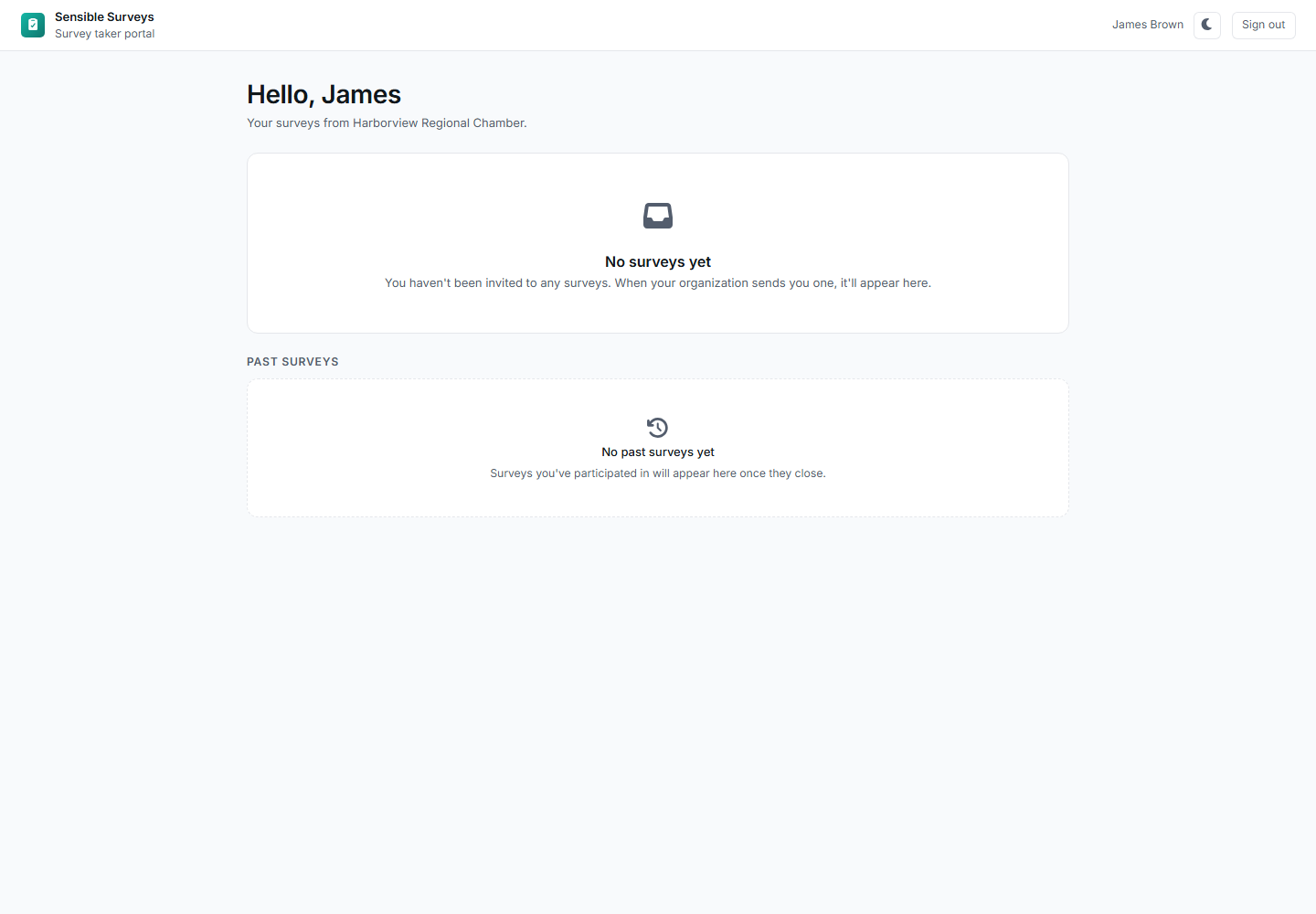
Survey taker dashboard showing active surveys with status badges and continue buttons.
Each active survey shows its close date, days remaining, and a button: Start survey, Continue survey, or, once you’ve submitted, Review your answers.
Answering the survey
Section titled “Answering the survey”Surveys are organized into sections, with navigation showing your progress in each. Some notes on how answering works:
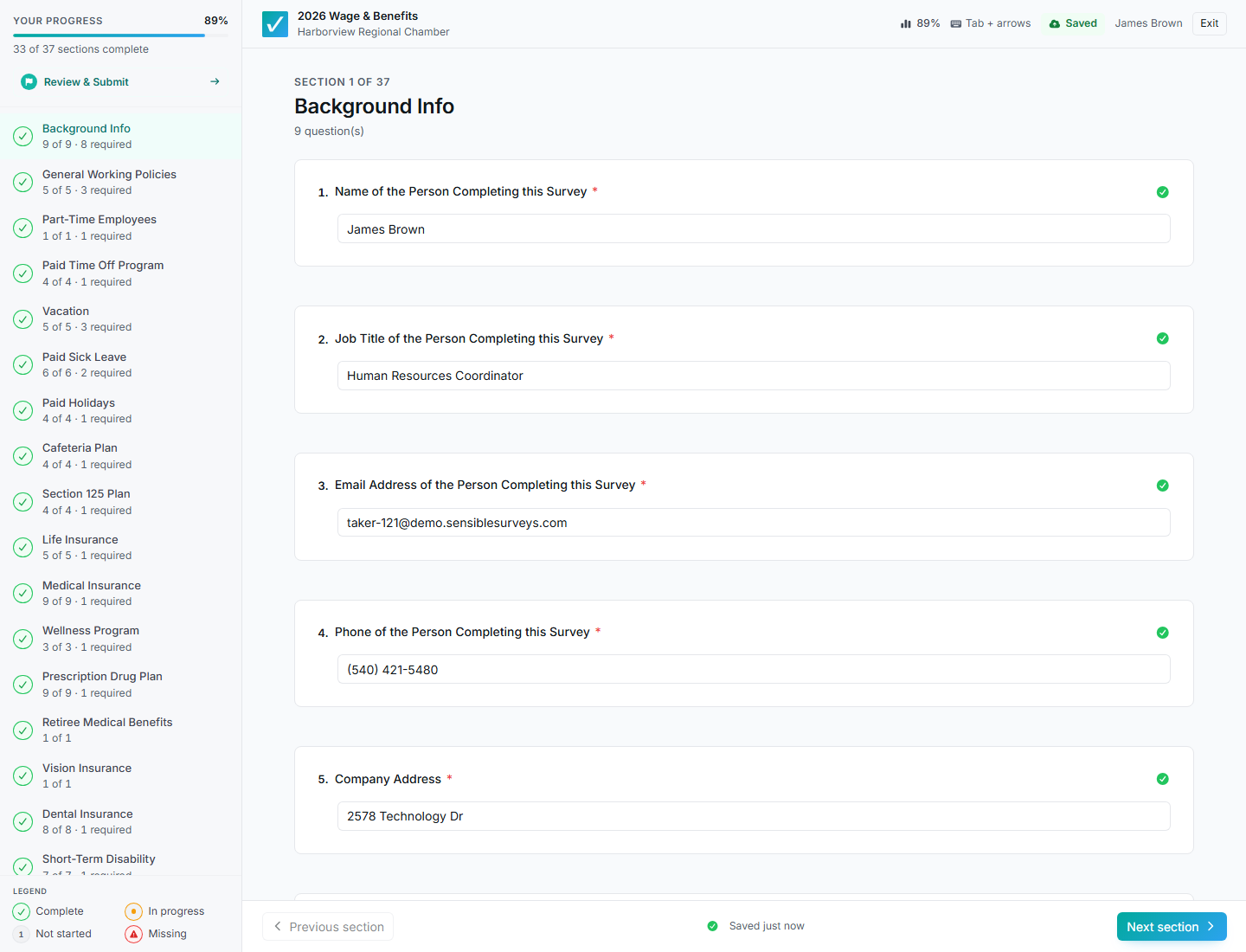
The survey view: sections and progress on the left, questions on the right, saving automatic.
- Your answers save automatically as you go: there is no save button. You can close the browser and pick up where you left off any time before the close date.
- Questions may appear or disappear based on earlier answers. That’s intentional; the survey is skipping what doesn’t apply to you.
- Required questions must be answered before you can submit. If submission seems blocked, look for sections that aren’t marked complete.
- If the survey includes compensation questions, you’ll choose the occupations your business employs and enter wage ranges for each; every occupation you select needs to be completed.
“Other” answers and results visibility
Section titled ““Other” answers and results visibility”When you pick “Other (please specify)” on a choice question, you type your own answer, and you’re asked: “Can this answer be shown in results?” Answer No and the survey team can still read it internally, but it will never appear in results shared with other participants.
Review and Final submit
Section titled “Review and Final submit”When everything is answered, you reach a read-only Review & Submit page listing every question and your answer. Each entry has an Edit this answer link if something needs fixing.
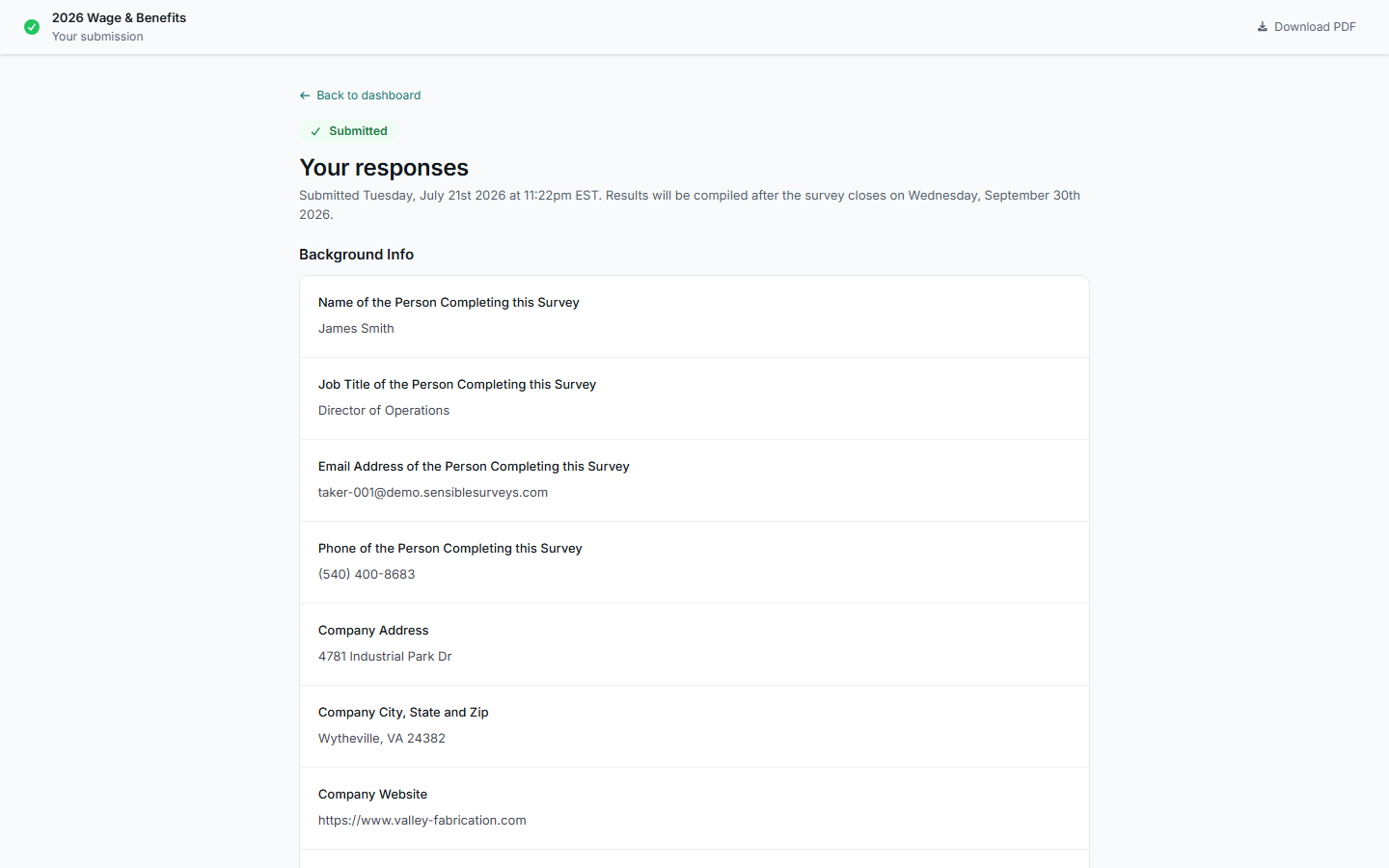
After submitting: your responses stay readable, with a Download PDF option for your records.
After submitting you’ll see a confirmation, get a receipt email, and your dashboard will show the survey as Submitted. You can still open Review your answers to read (not change) what you sent, and download a PDF copy for your records.
What happens to your answers
Section titled “What happens to your answers”Your individual responses are only visible to the survey’s administrators. Results are compiled after the survey closes, and anything shared with other participants is aggregated (combined across businesses), with a safe harbor rule that hides any question answered by too few companies to be anonymous. If the organization releases results to survey takers, you’ll be able to see the aggregate results page from your dashboard.
Troubleshooting
Section titled “Troubleshooting”I can’t find my survey
Section titled “I can’t find my survey”Sign in with the exact email address that received the invitation. If you have multiple addresses, try the others, or contact the organization to check which one they invited.
A question I answered disappeared
Section titled “A question I answered disappeared”An earlier answer you changed hid a follow-up that no longer applies. Nothing is lost if you change back.
I can’t submit
Section titled “I can’t submit”A required question is unanswered somewhere. Check the section navigation for sections not marked complete.
I submitted but need to change an answer
Section titled “I submitted but need to change an answer”Contact the organization that ran the survey. Self-service editing ends at Final submit.