
Manage who can see results
The Who can see this modal (on the results page and the Results Release tab) manages the three audiences that can be granted access to a survey’s results. Releasing an audience and managing the individuals in it are separate levers; this article covers the individuals.
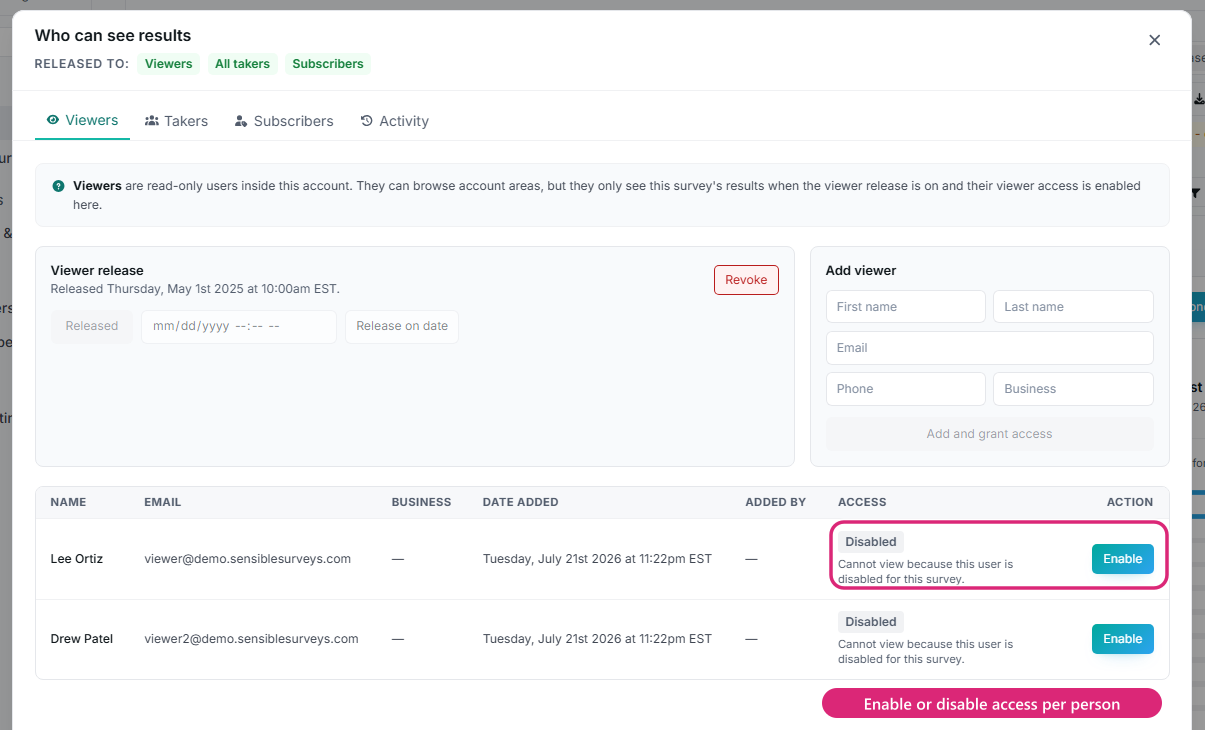
The Who can see results modal with audience tabs, release controls, the Add viewer form, and per-person access highlighted.
The three audiences
Section titled “The three audiences”Viewers
Section titled “Viewers”Internal people with read-only access to this survey’s released results: board members, committee members, staff who shouldn’t operate surveys. Add one with the Add viewer form (first name, last name, email, phone, business); they receive access when the viewer audience is released. Each viewer row shows name, email, business, date added, who added them, and their current access.
A viewer sees results when both the viewer audience is released and their individual access is enabled.
Takers
Section titled “Takers”The businesses that answered. Two modes, controlled by the Restrict results to granted respondents only setting:
- All takers (setting off): releasing to takers gives every submitted taker access. Takers who never submitted don’t get results access.
- Selected takers (setting on): releasing isn’t enough; you enable takers person by person. The audience row shows “Some takers” or “No takers selected” so you can tell at a glance.
Subscribers
Section titled “Subscribers”External results viewers, typically people who purchase access to a survey’s results. A subscriber sees results only where they hold an active grant for that specific survey and the subscriber audience is released. Grants don’t carry over: a new year’s survey needs new grants. Subscribers get an email notification when their access is granted.
Enable and disable individuals
Section titled “Enable and disable individuals”Every audience tab lists its people with an Enable / Disable action per row. Disabling removes that person’s access without touching the audience release or deleting anything; re-enabling restores it. Row states show Can view (green) when everything lines up, Granted when they’re enabled but the audience isn’t released yet, or Disabled.
This is the tool for “everyone except…” situations and for turning one person’s access on before or after everyone else’s.
Preparing access before release
Section titled “Preparing access before release”You can add viewers, grant subscribers, and enable takers before releasing; nothing becomes visible until the audience release switches on. Setting up the lists early, previewing, and then releasing is the calm way to run a release day.
What your team always sees
Section titled “What your team always sees”Owners and managers see full results regardless of audience settings; these controls only govern viewers, takers, and subscribers. To check what a released person will experience, use the Released audience preview on the results page.
Troubleshooting
Section titled “Troubleshooting”A viewer can’t access results
Section titled “A viewer can’t access results”Confirm: they were added to this survey’s viewer list, the viewer audience is released, their row isn’t disabled, and they’re signing in with the email on their row.
A subscriber can’t access results
Section titled “A subscriber can’t access results”Confirm they hold a grant on this survey (not just last year’s) and the subscriber audience is released.
A taker can’t access results
Section titled “A taker can’t access results”Confirm results were released to takers, the taker actually submitted a response, and, if restricted mode is on, that they’ve been individually enabled.