

Review survey progress
While a survey is running, your job is to spot problems early enough to fix them. Two pages do the work: the Dashboard for the account-wide picture, and each survey’s Overview tab for the details.
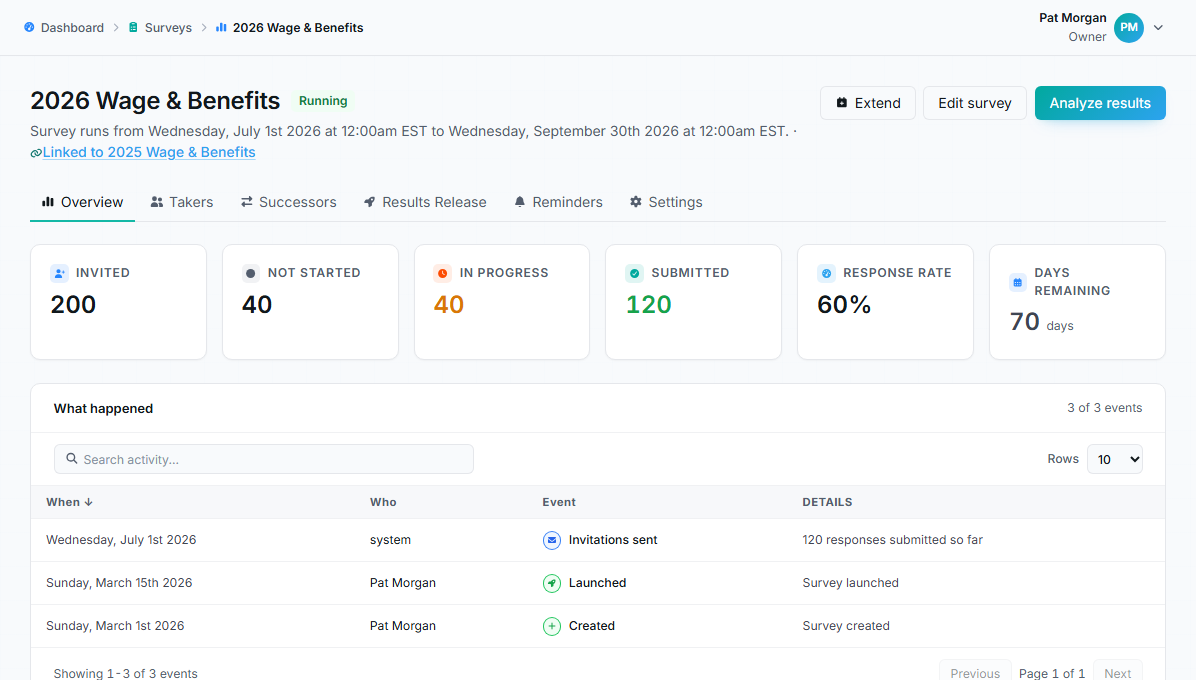
Survey overview tab showing invited, not started, in progress, submitted, response rate, and days remaining.
The survey overview
Section titled “The survey overview”Each running survey’s Overview tab shows six live numbers: Invited, Not started, In progress, Submitted, Response rate, and Days remaining, plus a What happened activity feed of events like invitations sent, extensions, and releases.
From the header you can Extend the close date, jump to Analyze results, or open the other tabs: Takers, Results Release, Reminders, and Settings.
Dashboard signals
Section titled “Dashboard signals”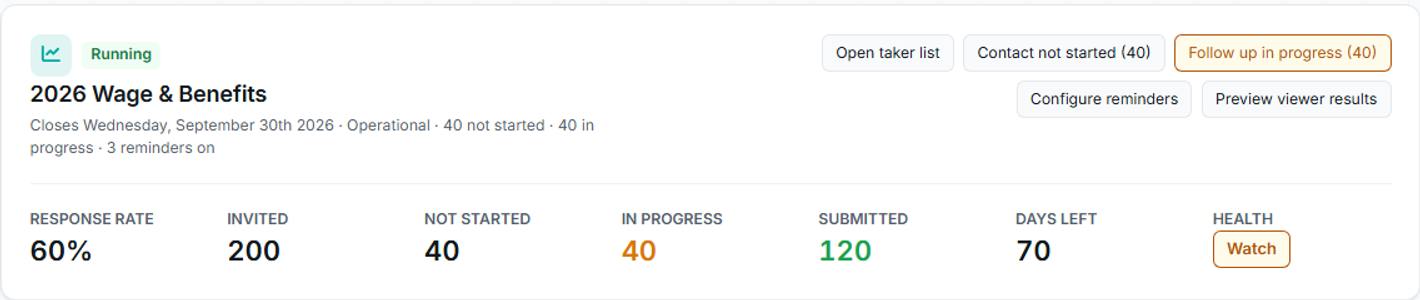
With one survey running, the dashboard shows a hero card with live metrics; with several, a list sorted by urgency.
The dashboard sorts running surveys by urgency and labels each with a health badge:
- Healthy: response rate at or above 70%.
- Watch: between 40% and 70%.
- At risk: below 40%, or below 70% with two or fewer days left.
- Needs invitees: nobody has been invited yet.
The Needs attention card lists specific problems with one-click actions:
- Low response rate: a running survey below 40% response.
- Closing soon: seven or fewer days remaining (urgent styling at two days).
- Email delivery issue: invitations that bounced or failed; fix the address and resend.
- Reminders not configured: both automatic reminder types are off.
- Draft incomplete: a draft that never finished the wizard.
- Closed but not released: a finished survey nobody has released yet.
Who needs follow-up
Section titled “Who needs follow-up”On the survey’s Takers tab, filter the list by status:
- Not started: never opened the survey. They may need a reminder, a corrected email address, or direct outreach.
- In progress: started but haven’t submitted. Each row shows a progress percentage. People stuck near 100% often don’t realize that saved answers are not a submission.
- Submitted: done; no action needed.
Use the status chips on the dashboard (Contact not started, Follow up in progress) to jump straight to the filtered list. From there you can resend invitations individually or in bulk.
Reminders do the routine work
Section titled “Reminders do the routine work”Automatic reminders nudge outstanding takers every few days and again when the close date approaches; configure them on the Reminders tab. Manual resends are for targeted follow-up. See Survey reminders.
When to extend
Section titled “When to extend”Consider Extend when the response rate is still low near the close date, important businesses haven’t responded, or a delivery problem cost takers time. Extending is only possible while the survey is running and only to a later date; once a survey closes, it cannot be reopened. Extensions are recorded in the activity feed.
What good progress looks like
Section titled “What good progress looks like”Response rate climbing steadily, few takers stuck in progress for long stretches, zero email delivery issues, reminders on, and a close date that still gives stragglers a realistic window.