

Use the survey editor
The survey editor is where you shape what takers experience: sections, questions, required flags, help text, and conditional logic. You reach it from the wizard’s Customize step via Open full editor. Edits there apply only to the survey you are building; shared templates are untouched.
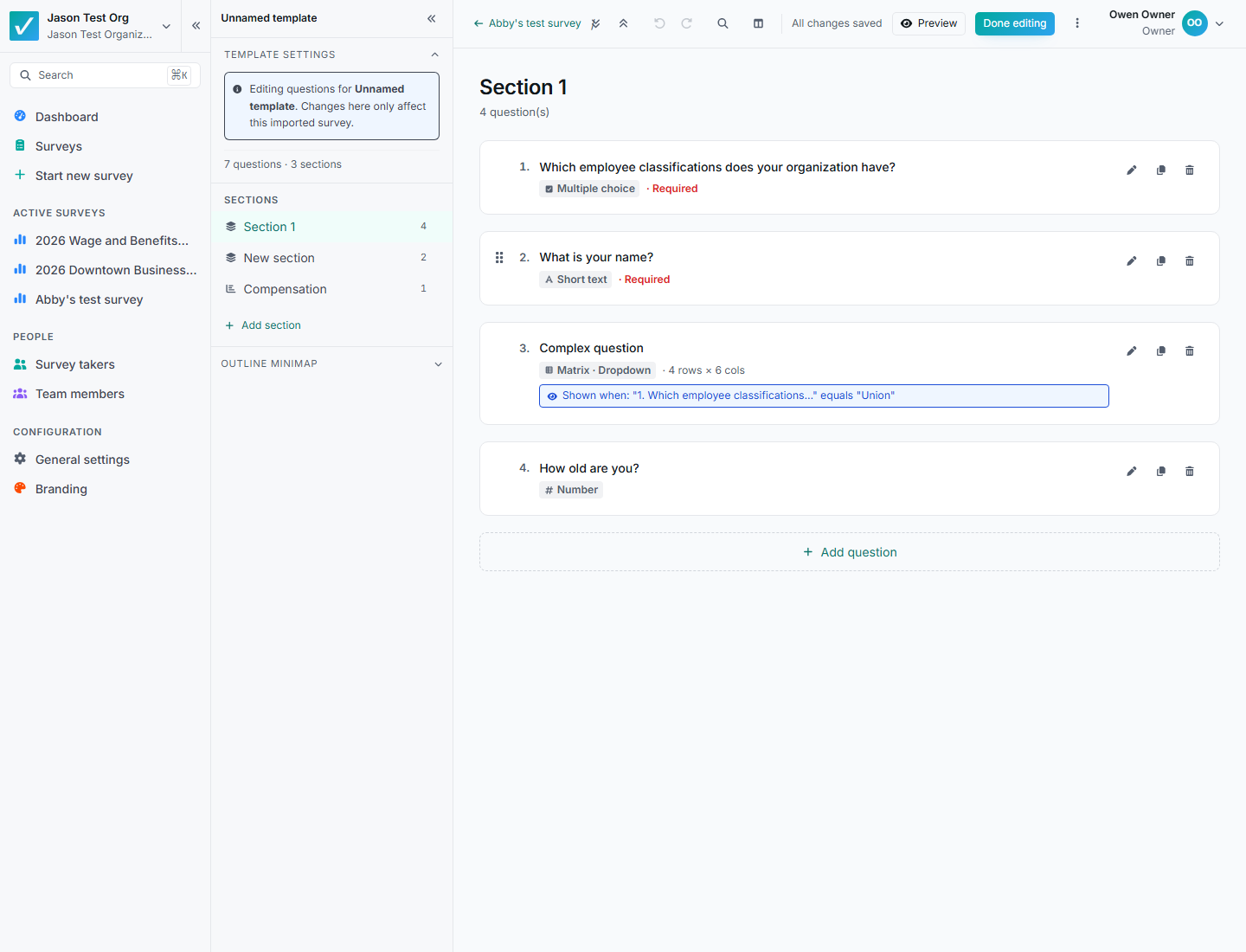
Survey editor showing sections, question cards, question types, and conditional logic.
Layout
Section titled “Layout”- Sidebar (left): template title and description, the Sections list, and an Outline minimap for jumping around. Drag sections to reorder them; each section’s menu offers Rename, Duplicate, and Delete section.
- Workspace (center): question cards for the selected section, with an Add question button at the bottom.
- Top bar: undo/redo, find & replace, split-view preview, the autosave indicator, Preview, and Done editing (or Continue to setup).
Everything saves automatically
Section titled “Everything saves automatically”There is no save button. The indicator in the top bar shows “All changes saved”, “Saving…”, or a retry state if a save fails. Undo and redo cover your last 50 changes (Ctrl/Cmd+Z, Ctrl/Cmd+Shift+Z).
Sections
Section titled “Sections”Sections group related questions and become the taker’s navigation. Add one with Add section; give it a name takers will understand. To move a question to another section, drag its card onto that section’s row in the sidebar; it lands at the bottom of the destination.
One special case: a survey can contain at most one compensation section (see Compensation questions).
Question cards
Section titled “Question cards”Collapsed cards show enough to scan the survey: number, question text, a type badge, Required, matrix dimensions, and a blue “Shown when: …” chip if the question has conditional logic. Icons on each card change type, duplicate, or delete the question.
Click a card to expand and edit:
- Question text (with bold, italic, and links).
- Help text (optional): shown to the taker under the question.
- Type-specific settings: options, rows, columns, formats.
- The Required toggle: takers cannot submit without answering.
- Show this question when…: conditional logic (see Use conditional logic).
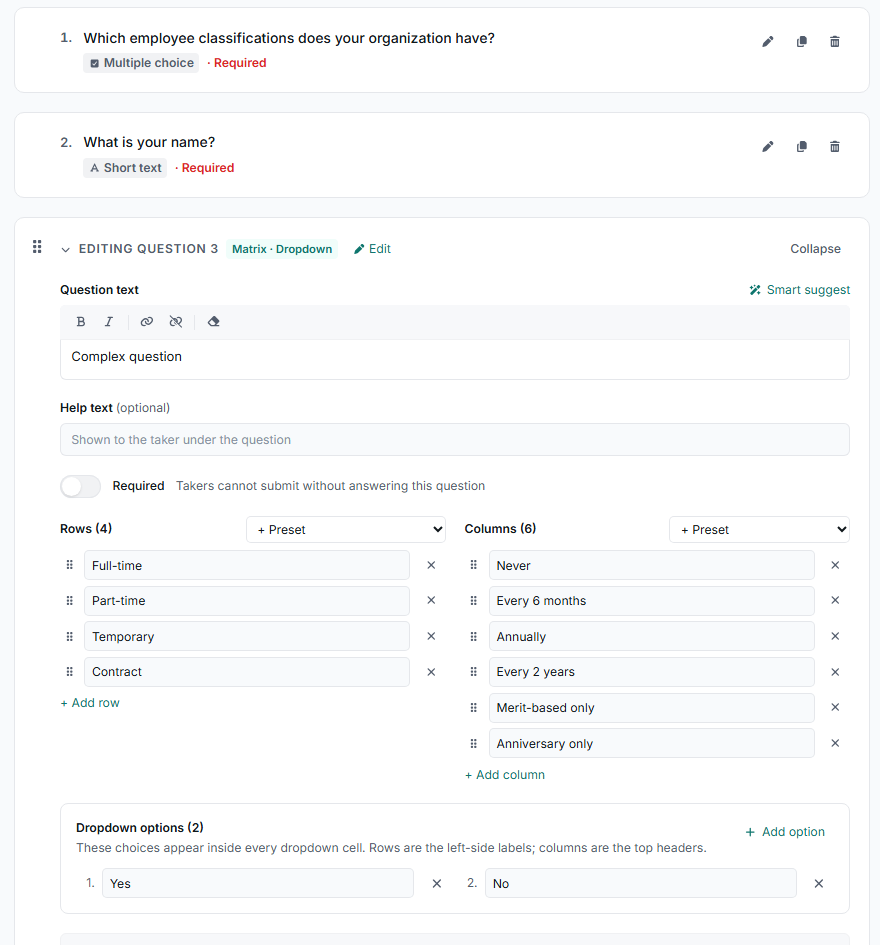
An expanded question card with question text, help text, required toggle, and matrix rows and columns.
A Smart suggest button proposes a type and options from your question wording, useful for quick drafting; always review what it picks.
Changing a question’s type
Section titled “Changing a question’s type”Changing type can discard settings that no longer apply, and the editor tells you exactly what before it happens: leaving a matrix type removes rows and columns; leaving a choice type removes options; visibility rules that reference the question get flagged for review. Read the “Change this question type?” summary before confirming.
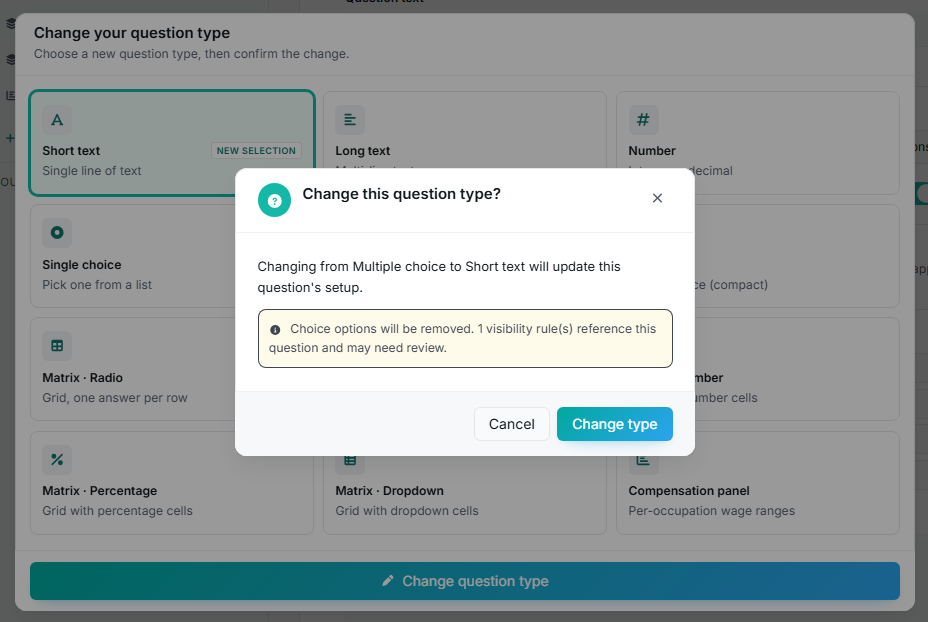
The change question type confirmation listing exactly which settings will be removed.
Preview before you launch
Section titled “Preview before you launch”- Preview opens the survey exactly as a taker will see it, using the same renderer takers use.
- The split view toggle keeps a live preview beside the editor while you work.
Preview after every meaningful change, especially to logic, matrix questions, or required flags, and test the answer paths that show or hide questions.
Power tools (⋮ menu)
Section titled “Power tools (⋮ menu)”The overflow menu in the top bar holds the heavier tools:
-
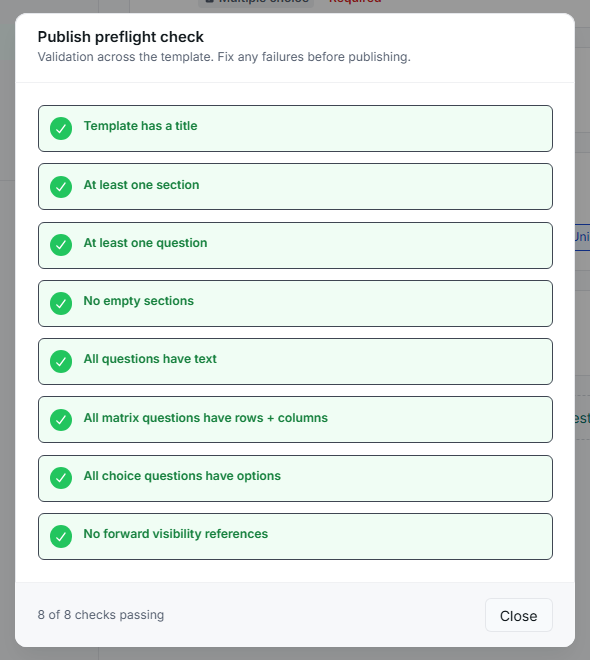
Publish preflight check: verifies the survey has a title, no empty sections, question text everywhere, options/rows/columns where needed, and no forward-referencing logic.
-
Visual logic graph: a diagram of which questions control which.
-
Find & replace (Ctrl/Cmd+F): across all questions.
-
Bulk edit (table view): edit text and flags in a spreadsheet-like table, per section or across the survey.
-
Question snippets library and Import from CSV: faster ways to add many questions.
-
Taker experience settings: section order (sequential, randomized, or any order), the progress display (percent, page numbers, section name, or hidden), and whether takers can jump between sections.
Common mistakes
Section titled “Common mistakes”- Adding logic without previewing both the shown and hidden paths.
- Long, unlabeled sections that make takers scroll blind; split them and name them well.
- Changing a question type and losing options that logic elsewhere depended on; the warning lists affected rules; heed it.
- Leaving a Matrix · Dropdown question without dropdown options; the preflight check catches this.
- Writing internal jargon takers won’t recognize.