

Add and manage invitees
Invitees are the people who can respond to a survey. Before launch you build the list in the wizard’s Invites step; after launch you manage it on the survey’s Takers tab. The invitee list controls who receives invitations, who reminders chase, and whose responses appear in results.
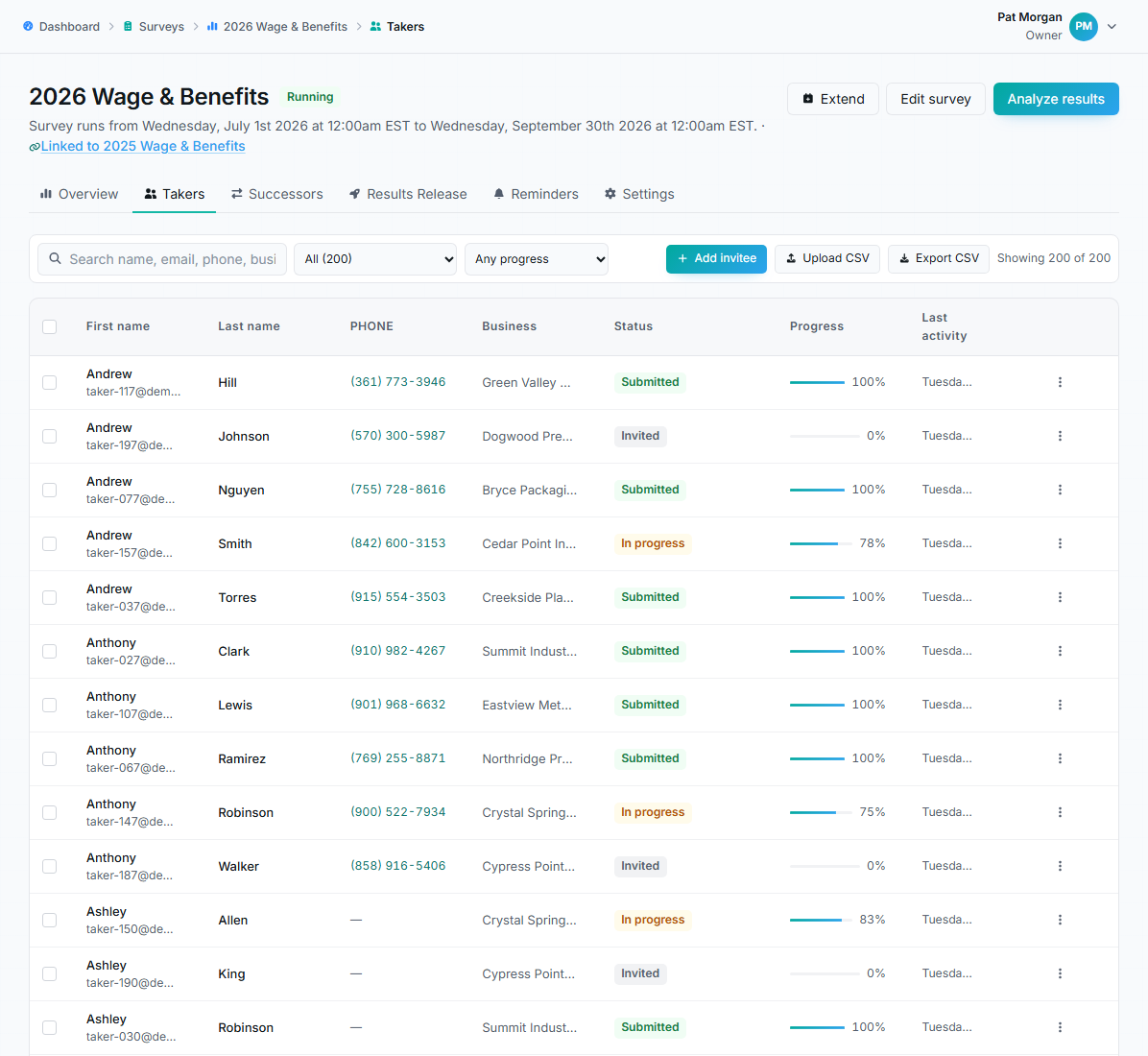
Takers tab showing the invitee list with statuses, progress, and search.
Ways to add invitees
Section titled “Ways to add invitees”Add manually
Section titled “Add manually”Add invitee opens a form: first name, last name, email (required), business, phone, and title. If you skip the business it shows as “Not yet specified” until edited.
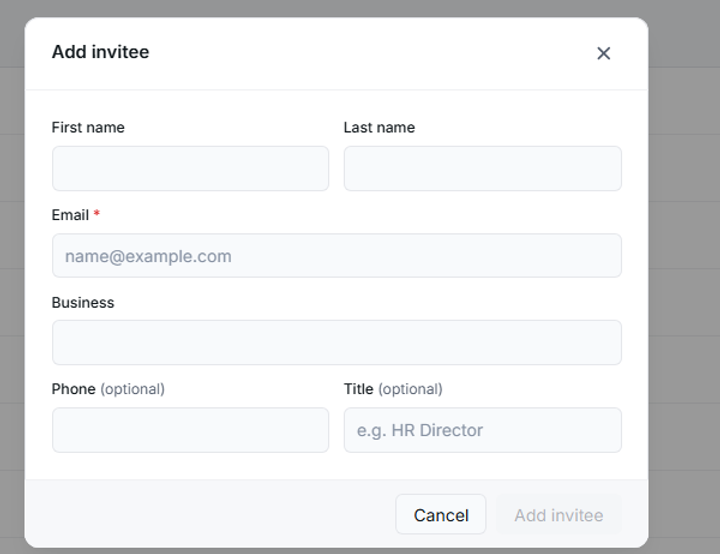
The Add invitee form with name, required email, business, phone, and title fields.
Upload CSV
Section titled “Upload CSV”Upload CSV accepts a spreadsheet export. Only the Email column is required; First name, Last name, Business, Phone, and Title are optional. A Download sample CSV template link gives you the exact header row:
First name,Last name,Email,Business,Phone,TitleAfter you choose a file, a validation summary shows three counts before anything is saved: valid rows, already invited (skipped), and missing or invalid email. Confirm with Add N invitee(s).
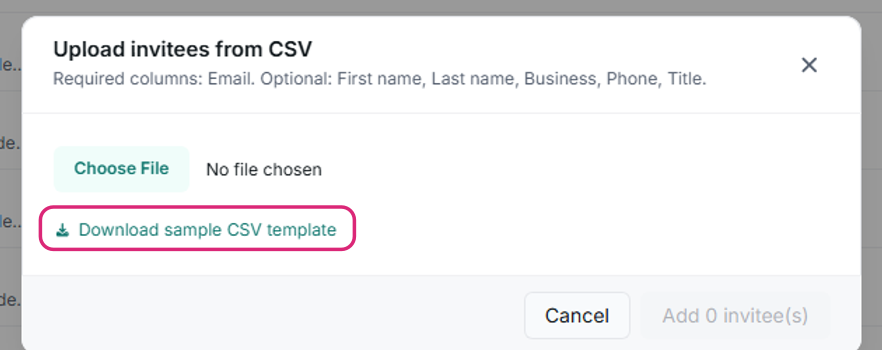
The Upload invitees from CSV dialog with the sample-template download link highlighted.
Paste from a spreadsheet
Section titled “Paste from a spreadsheet”In the wizard you can paste rows straight from Excel or Sheets, or even a plain list of email addresses, one per line. The parser detects the columns automatically.
Add previous invitees
Section titled “Add previous invitees”Import invitees from a previous survey copies the roster from an earlier survey in your account. You pick the source survey, preview the list, and import; duplicates against your current list are skipped automatically. Ideal for annual surveys.
Duplicates are always detected by email address, ignoring capitalization: one email, one invitee, per survey.
Taker statuses
Section titled “Taker statuses”Each row shows a status and a progress bar:
- Not started / Invited: hasn’t opened the survey.
- In progress: started but not submitted; progress shows how far they got.
- Submitted: done. Their answers are part of the result set.
- Excluded: an admin flagged this response to be left out of results.
An Email issue badge means the invitation or a reminder bounced or failed. Fix the address (click the row to edit) and resend; delivery problems also surface on the dashboard under Needs attention.
Editing a taker after launch
Section titled “Editing a taker after launch”Click any row to open Edit survey taker. You can correct name, email, phone, business, title, and preferred language (English or Español) at any time, including after launch. The modal also shows the taker’s survey history and offers Reset password, Resend invitation, and Remove taker.
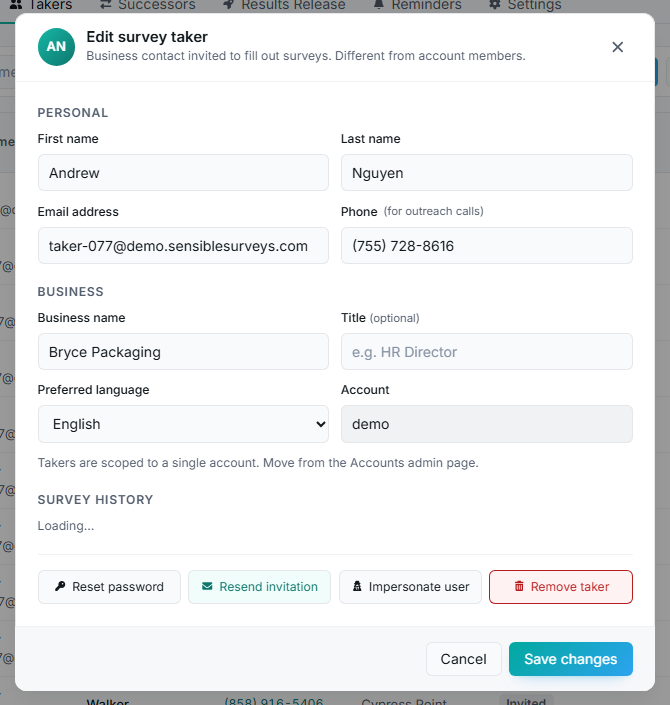
The Edit survey taker dialog with personal and business fields, survey history, and action buttons.
Resending invitations
Section titled “Resending invitations”Use Resend invite on a row (or select several and resend in bulk) when someone lost the email or you corrected their address. Resend is disabled for takers who already submitted.
Removing takers
Section titled “Removing takers”Removing a taker stops their reminders and takes them off the survey. Two rules:
- A taker who submitted cannot be removed: their data is part of the result set. If a submitted response should not count, an administrator can mark it excluded from results instead.
- Bulk remove automatically skips submitted rows.
Answering on behalf of a taker
Section titled “Answering on behalf of a taker”Some businesses respond by phone, on paper, or in a meeting. Owners and managers can enter those answers for them: open the taker’s row, then choose Impersonate user to open the survey exactly as that taker sees it. Answers you enter are recorded like any other response. Use this only with the business’s knowledge, and remember that submitting locks the response the same way it does for a real taker.
Excluding a response from results
Section titled “Excluding a response from results”A submitted response cannot be deleted, but it can be marked excluded from results: the answers stay stored, the taker’s row shows an Excluded status, and the response is left out of every aggregate. Use this for duplicates and test submissions. If you need a response excluded, contact your Sensible Surveys administrator.
Invite-by-link mode
Section titled “Invite-by-link mode”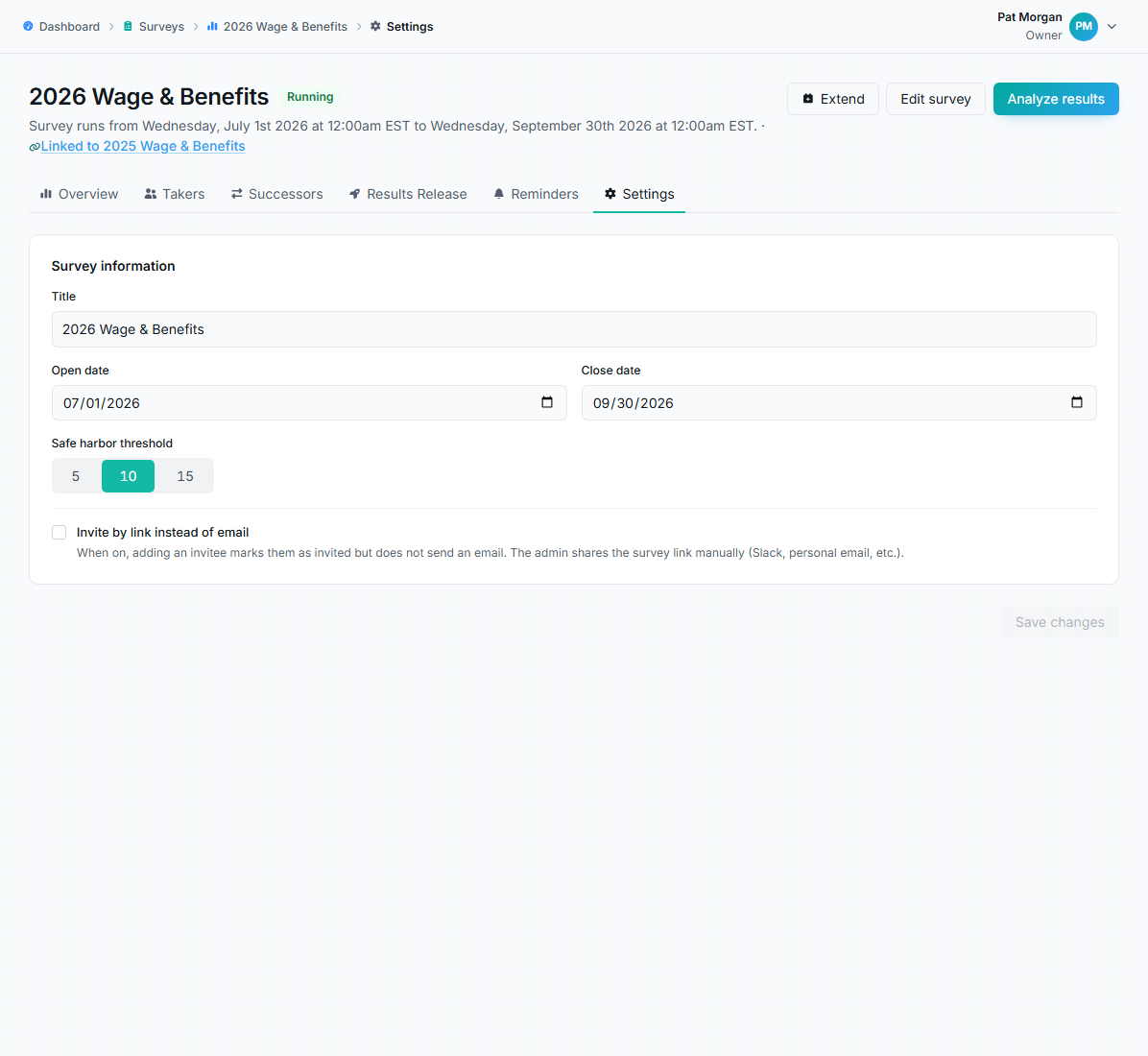
The survey Settings tab, home of per-survey options like invite-by-link.
Invite-by-link is turned on per survey, on the survey’s Settings tab. When it is on, adding an invitee records them but sends no email; you share the survey link yourself (personal email, Slack, a newsletter). Automatic reminders don’t email in this mode either, so plan your own follow-up.
Troubleshooting
Section titled “Troubleshooting”The launch button is disabled because of invitees
Section titled “The launch button is disabled because of invitees”Add at least one invitee with a valid email, and clear any duplicate-email warnings in the invite table.
An invitee can’t sign in
Section titled “An invitee can’t sign in”They must use the exact email address that was invited. If they insist it’s right, check their row for an Email issue badge and confirm there’s no typo in the stored address.
Lots of “in progress” but few submissions
Section titled “Lots of “in progress” but few submissions”Send a reminder, and check whether a required question late in the survey is blocking people. Saving progress is not submitting; takers sometimes stop at 100% without pressing Final submit.