

Create and launch a survey
Click Start new survey in the sidebar (or Create survey on the dashboard) to open the survey wizard. It walks through five steps: Basic info → Template → Customize → Invites → Review & Launch. Your progress saves automatically as a draft, so you can leave at any step and resume later; drafts appear on the dashboard under Drafts in progress with a Continue survey setup button.
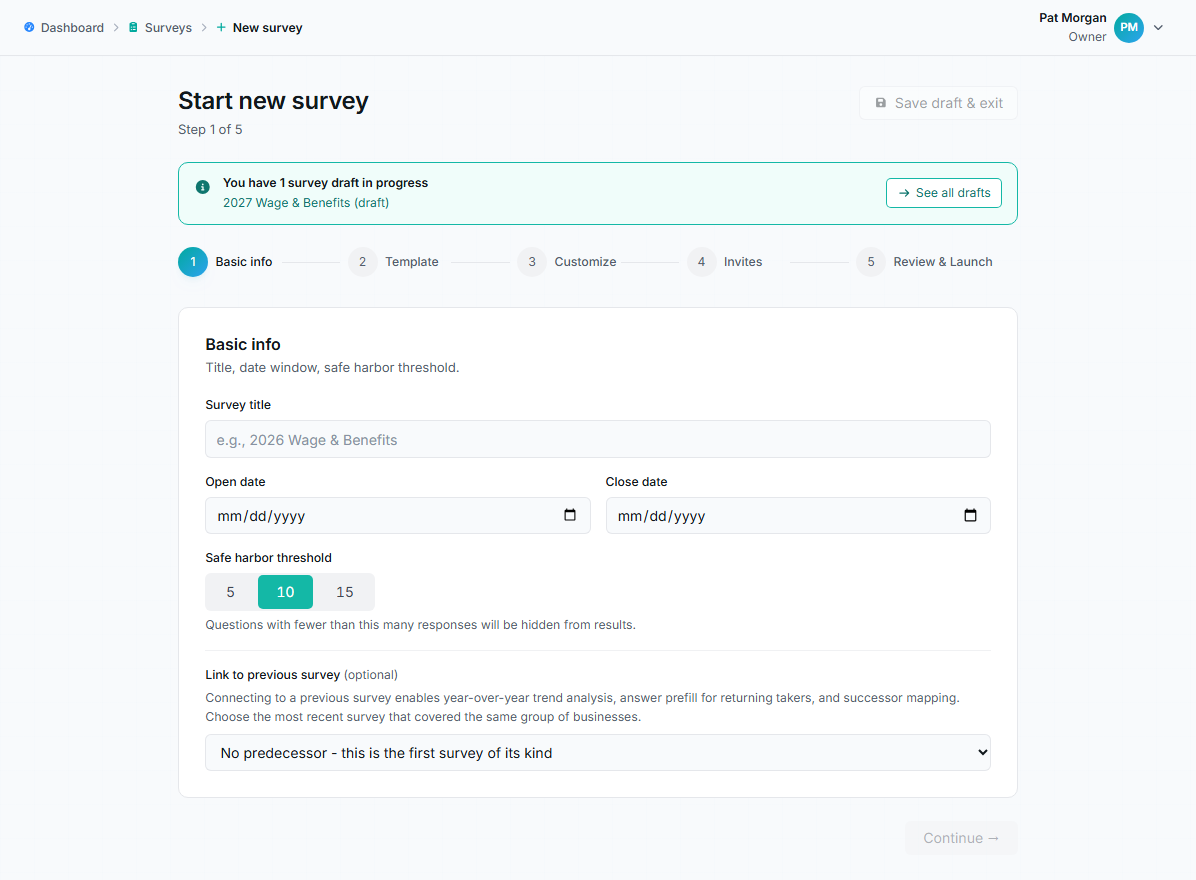
New survey wizard on step 1 of 5, Basic info, with title, dates, safe harbor threshold, and predecessor link.
Step 1: Basic info
Section titled “Step 1: Basic info”- Survey title: what takers and your team will see everywhere.
- Open date and Close date: the response window. The close date must be after the open date, and a survey can’t launch with a close date in the past.
- Safe harbor threshold: choose 5, 10, or 15 (default 10). Questions answered by fewer businesses than this are hidden from results. Pick carefully: the threshold can only be changed before launch. See Understand results and safe harbor.
- Link to previous survey (optional): connect this survey to last year’s edition. Returning takers see their previous answers pre-filled, and results gain year-over-year trend comparisons. Choose the most recent survey that covered the same group of businesses. See Trends and linked surveys.
Step 2: Choose a template
Section titled “Step 2: Choose a template”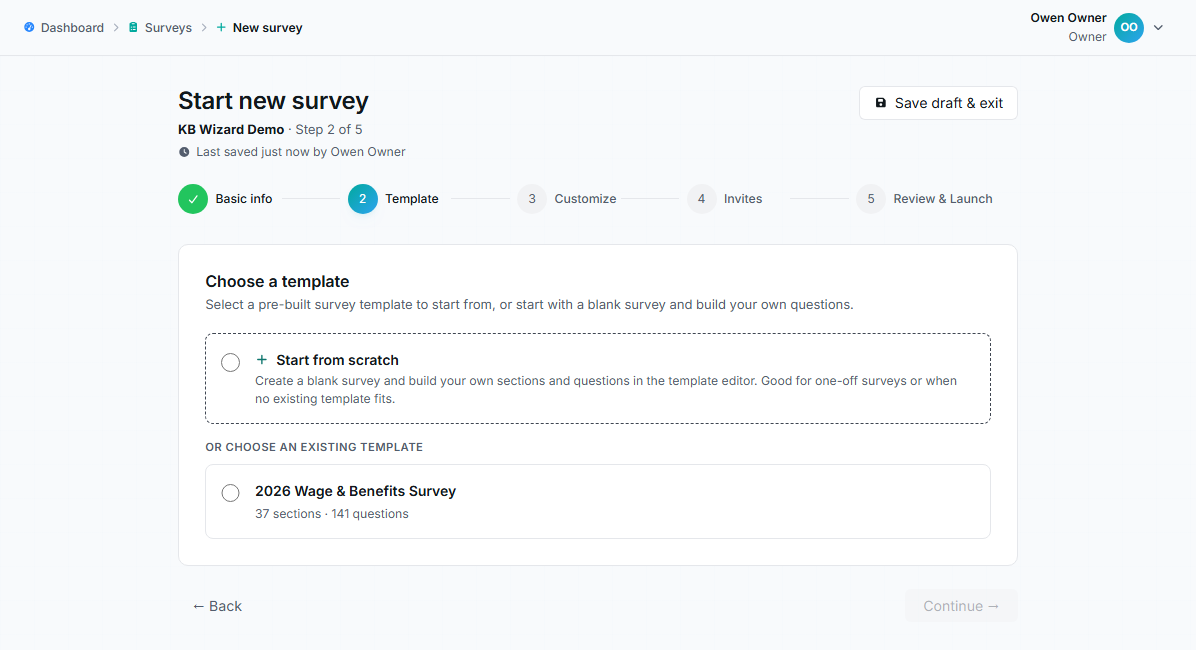
Wizard step 2 with the Start from scratch card and a template card showing section and question counts.
Pick a pre-built survey template, or choose Start from scratch to build a blank survey in the editor. Each template card shows its section and question counts.
Step 3: Customize
Section titled “Step 3: Customize”You see an outline of the chosen template’s sections. For each section you can:
- Uncheck it to exclude it from this year’s survey.
- Expand Show questions to scan its contents.
- Click Open full editor to change questions, add logic, or restructure; see Use the survey editor. Edits apply only to this survey, never to the shared template.
When the questions are correct, tick the “Questions are ready” checkbox. Launch stays disabled until you do.
Step 4: Invites
Section titled “Step 4: Invites”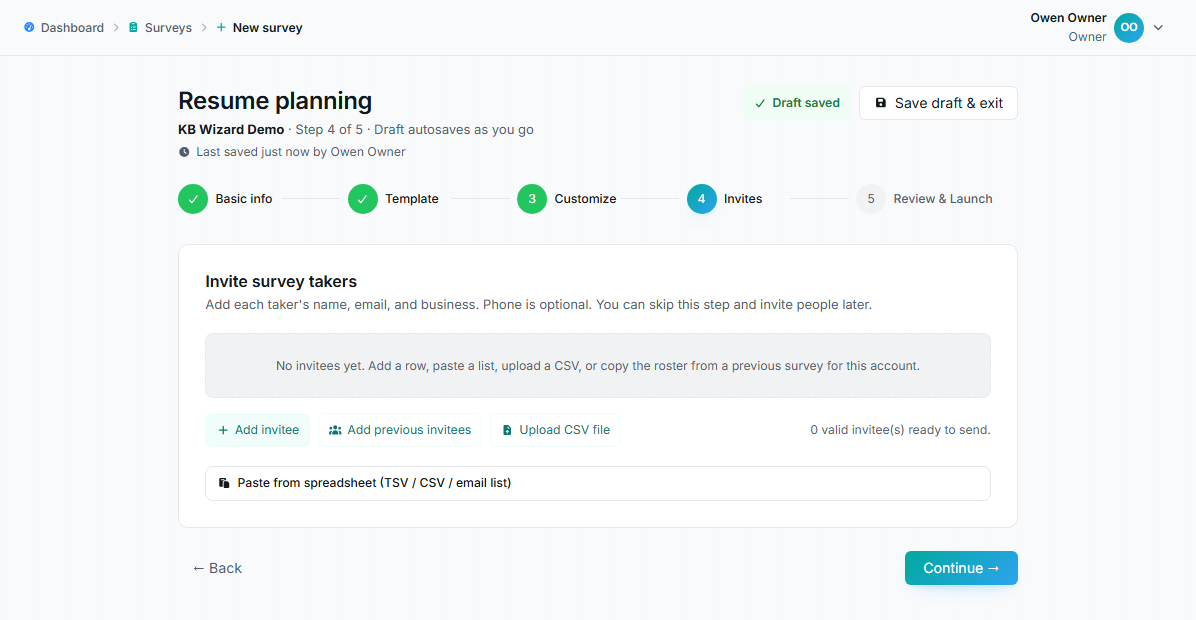
Wizard step 4 with the invitee table and the add, import, upload, and paste options.
Add the people who should take the survey. Four ways:
- Add invitee: type a row directly into the table (first name, last name, email, business, phone).
- Upload CSV file: a sample template is downloadable; only Email is required.
- Paste from spreadsheet: paste TSV, CSV, or a plain list of email addresses.
- Add previous invitees: copy the roster from an earlier survey; duplicates against your current list are skipped automatically.
Invalid emails are flagged, and duplicate emails must be removed before launching. See Add and manage invitees for details.
Step 5: Review & Launch
Section titled “Step 5: Review & Launch”The summary shows the title, date window, safe harbor threshold, template, customizations, and invitee count. Launch requires all three of:
- The Questions are ready confirmation from step 3.
- At least one valid invitee.
- No duplicate invitee emails.
When you click launch, the survey opens for responses and invitation emails are queued.
After launch
Section titled “After launch”The survey status becomes Running. Question editing is now locked (structural changes require creating a new draft), but you can still add invitees, send reminders, adjust reminder settings, and extend the close date. Monitor progress from the dashboard and the survey’s Takers tab. See Review survey progress.
Troubleshooting
Section titled “Troubleshooting”The launch button is disabled
Section titled “The launch button is disabled”Hover it for the reason. It’s one of: the Questions are ready box isn’t checked, there are no valid invitees, or duplicate emails exist in the invite list.
I picked the wrong template
Section titled “I picked the wrong template”Go back to step 2 and choose another. If you already customized questions, the change-template warning will confirm your customizations get replaced.
I need to fix a question after launch
Section titled “I need to fix a question after launch”Question edits are blocked on a running survey to protect the answers already collected. For a wording emergency, contact support; otherwise plan the fix for the next edition.