

Understand question types
The question type determines how a taker answers and which settings the editor offers. Sensible Surveys has twelve types, shown when you add a question or change its type. Choose the simplest one that captures the answer accurately.
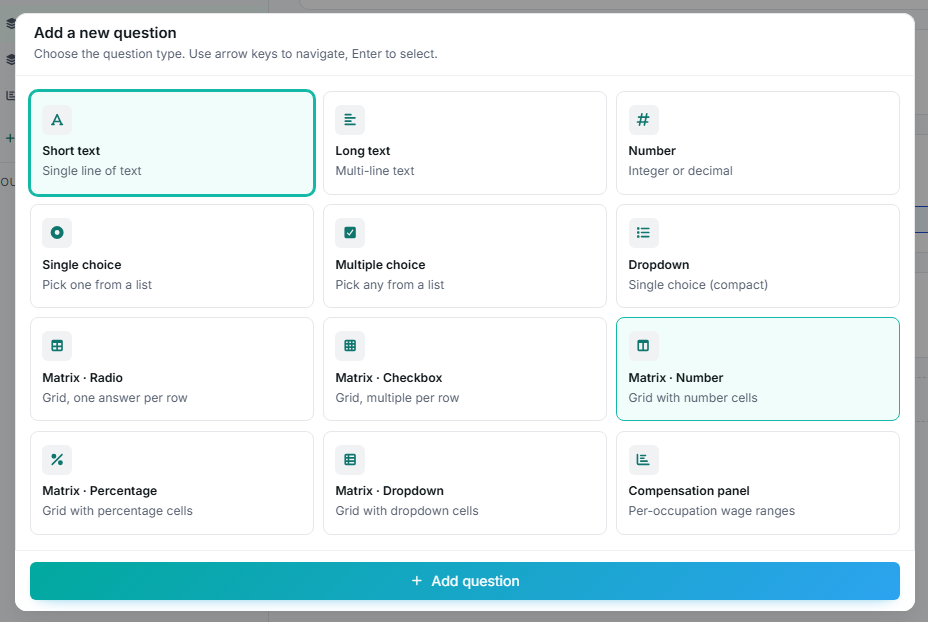
The Add a new question type picker showing all twelve question types.
Text questions
Section titled “Text questions”Short text
Section titled “Short text”A single line of text: names, titles, brief comments. Short text questions have an optional Format: plain text, Phone (formatted as (###) ###-####), Email, Website URL, or ZIP code. Formats validate and tidy the taker’s entry automatically.
Long text
Section titled “Long text”Multi-line free response for explanations and comments. Remember that free text is hard to aggregate; in results it appears as individual responses rather than a chart.
Number
Section titled “Number”A numeric answer, with formatting controls:
- Prefix and suffix: e.g.
$before or%/hrsafter. - Decimals: 0 to 4 decimal places.
- Minimum and maximum: takers cannot submit values outside the range.
Set sensible bounds; they catch typos like an extra zero before the data reaches your results.
Choice questions
Section titled “Choice questions”Single choice
Section titled “Single choice”Pick exactly one option from a visible list. Good for yes/no and either/or questions.
Multiple choice
Section titled “Multiple choice”Pick any number of options. Common for “which of these apply to your organization” questions. When you target a multiple choice question with conditional logic, use the contains operator, not equals, because the answer can include several values.
Dropdown
Section titled “Dropdown”Single choice in a compact select control. Use it when the option list is long and would crowd the page.
All three choice types support “Other (please specify)”; see below.
Matrix questions
Section titled “Matrix questions”Matrix questions repeat the same answer structure across several rows. Four variants:
- Matrix · Radio: one answer per row on a shared scale (e.g. rate each benefit).
- Matrix · Checkbox: multiple selections per row.
- Matrix · Number: a number in each cell, with the same formatting controls as the Number type.
- Matrix · Percentage: a percentage in each cell.
- Matrix · Dropdown: a dropdown in each cell; all cells share one list of Dropdown options. The question needs all three parts (rows, columns, and dropdown options) or takers have nothing to answer.
Rows and columns can be reordered by dragging, and preset row/column lists are available to speed up entry. Keep matrices modest: too many rows or columns makes them hard to complete.
Compensation panel
Section titled “Compensation panel”The compensation panel is a specialized question that collects wage ranges per occupation, the heart of a wage and benefits survey. It has its own article: Compensation questions.
“Other (please specify)”
Section titled ““Other (please specify)””On single choice, multiple choice, and dropdown questions you can enable Allow “Other (please specify)”. The taker who picks it gets an inline text box, and you can customize the option’s label and require the text when the question itself is required.
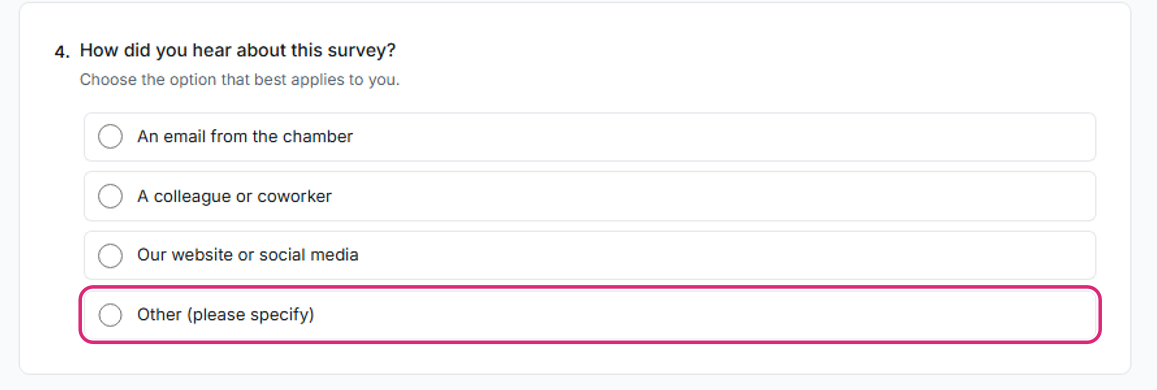
A choice question as takers see it, with the Other option highlighted.
Because a typed “Other” answer might identify the respondent, the taker is asked one extra question below their entry: “Can this answer be shown in results?” (Yes / No).
- Owners and managers reviewing results see all “Other” answers.
- Released audiences (viewers, takers, subscribers) only see answers whose writer said Yes.
Choosing the right type
Section titled “Choosing the right type”Ask yourself:
- Written answer → Short or Long text.
- A number → Number (set prefix, decimals, and bounds).
- One option → Single choice, or Dropdown for long lists.
- Several options can apply → Multiple choice.
- Same scale across related items → a Matrix variant.
- Wages per occupation → Compensation panel.
- Will conditional logic depend on this answer? Choice types are easiest to build rules against.