

Release results
Results are never distributed automatically: not when the survey closes, not when results are compiled. An owner or manager releases them, audience by audience, from the survey’s Results Release tab.
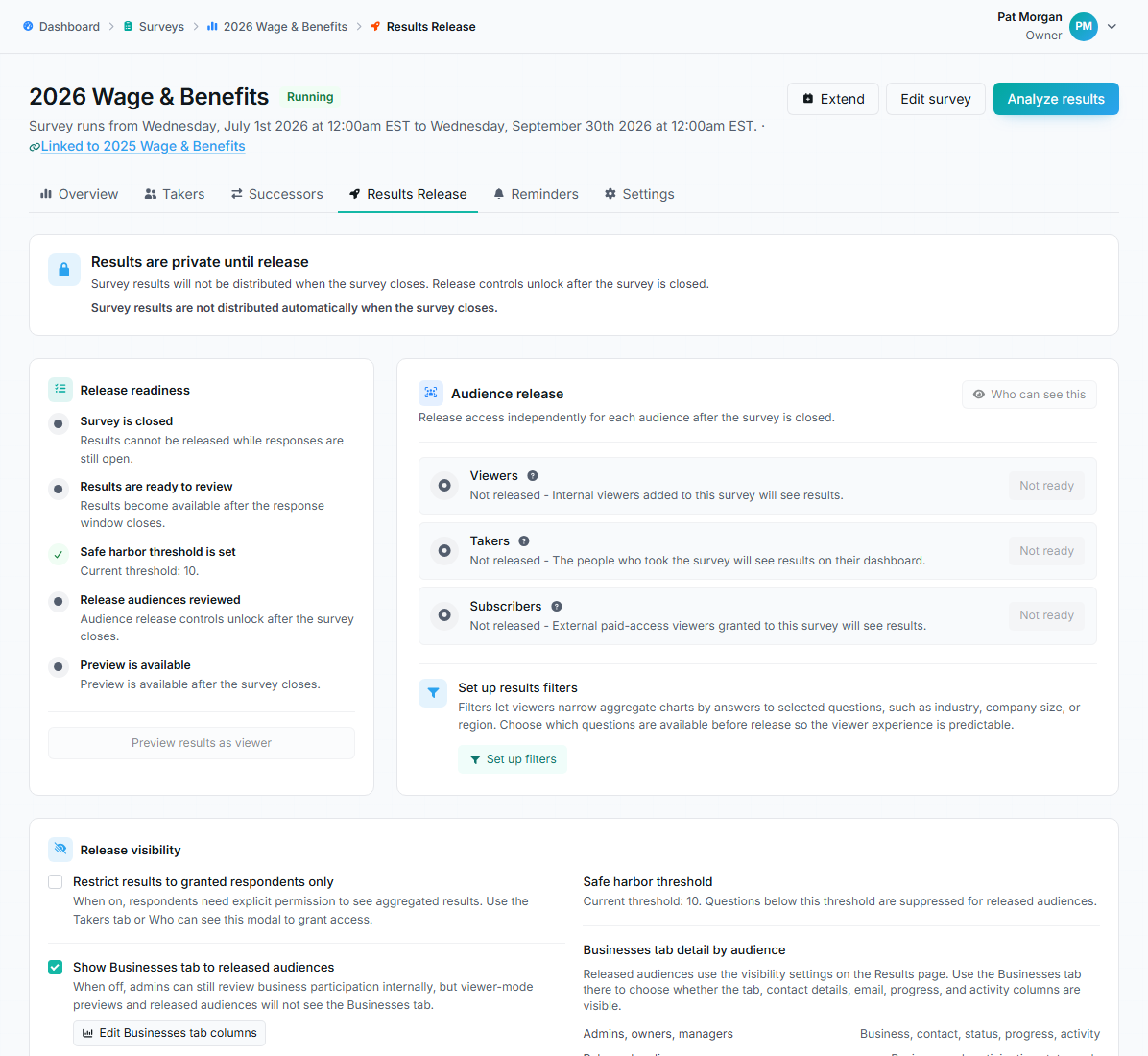
Results Release tab showing release readiness, audience release, and release visibility controls.
Release readiness
Section titled “Release readiness”The banner at the top states the ground rule: results are private until release. Below it, the Release readiness checklist tracks:
- Survey is closed: the one hard requirement. Release controls stay locked while responses are still open.
- Results are ready to review: compiled and viewable by your team.
- Safe harbor threshold is set: shows the current threshold.
- Release audiences reviewed and Preview is available: unlock together with close.
Once the survey is closed, use Preview results as viewer before releasing anything; it shows the exact released experience, with suppression and hidden fields applied.
Audience release
Section titled “Audience release”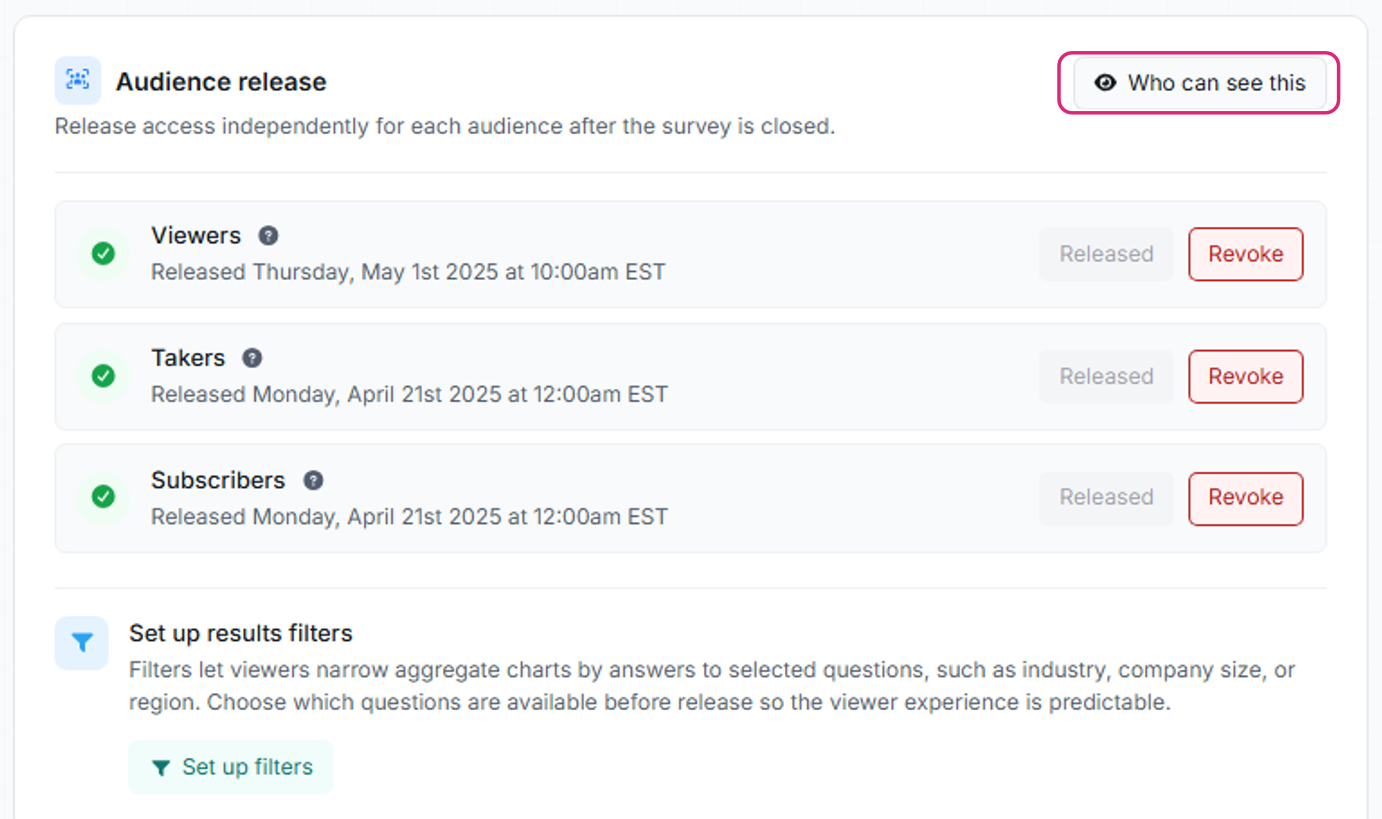
The Audience release card with per-audience release states and the Who can see this button.
Each audience releases independently:
- Viewers: internal read-only people added to this survey.
- Takers: the businesses that took the survey; they see aggregated results only, and only takers who submitted can view.
- Subscribers: external results viewers holding a grant on this survey.
Each row shows its state (not released, released, or scheduled) and offers two actions:
Release now
Section titled “Release now”Grants access immediately. People in the audience can open results on their next visit, and released subscribers are notified. Use it only after previewing.
Release on date
Section titled “Release on date”Records a scheduled release date for the audience instead of releasing immediately. The date shows on the audience row and can be changed or canceled (Cancel schedule) until it’s live.
Revoke
Section titled “Revoke”Revoke turns access off again for an audience; the next time those users load results, they’re locked out. Revoking doesn’t delete any data; you can re-release later. Use it if results went out too early or a visibility setting was wrong.
Release visibility
Section titled “Release visibility”Two settings control what released audiences see:
- Restrict results to granted respondents only: when on, releasing to takers isn’t enough: each taker also needs individual access granted (from the Takers tab or the Who can see this modal). Use for surveys where result access is a per-business decision. When off, a taker release applies to all submitted takers.
- Show Businesses tab to released audiences: whether released viewers see the participation table at all, and Edit Businesses tab columns controls which columns. Email address and last activity are hidden by default; keep them hidden unless there’s a clear reason.
The safe harbor threshold is also displayed here for reference; it applies to every released audience automatically.
Troubleshooting
Section titled “Troubleshooting”Release buttons are disabled
Section titled “Release buttons are disabled”The survey is still running. Release controls unlock after the close date passes. If you need to release sooner, the survey’s window was too long; next time set an earlier close date; a running survey can only be extended, not shortened.
A released user says they can’t see results
Section titled “A released user says they can’t see results”Check, in order: the right audience is actually released (not just scheduled); the person is signed in with the expected email (share the View released results guide with them); for viewers, that they’re added to this survey and enabled; for subscribers, that they hold an active grant on this survey; for takers, that they submitted a response, and if “Restrict results to granted respondents” is on, that they’ve been individually granted.
Results show more than intended
Section titled “Results show more than intended”Revoke the audience, fix the visibility settings (businesses columns, excluded questions, filters), verify with Preview results as viewer, then re-release.