

Branding your account
Branding makes the survey experience feel like it comes from your organization. It applies to survey taker pages, taker and subscriber results pages, and account emails. Sign-in and other global pages keep standard Sensible Surveys styling.
Branding is in beta: the page itself notes it isn’t thoroughly tested on every surface yet. Preview carefully before relying on it for a launch.
Only owners can edit branding (managers and others see the page read-only). Find it in the sidebar under Configuration → Branding.
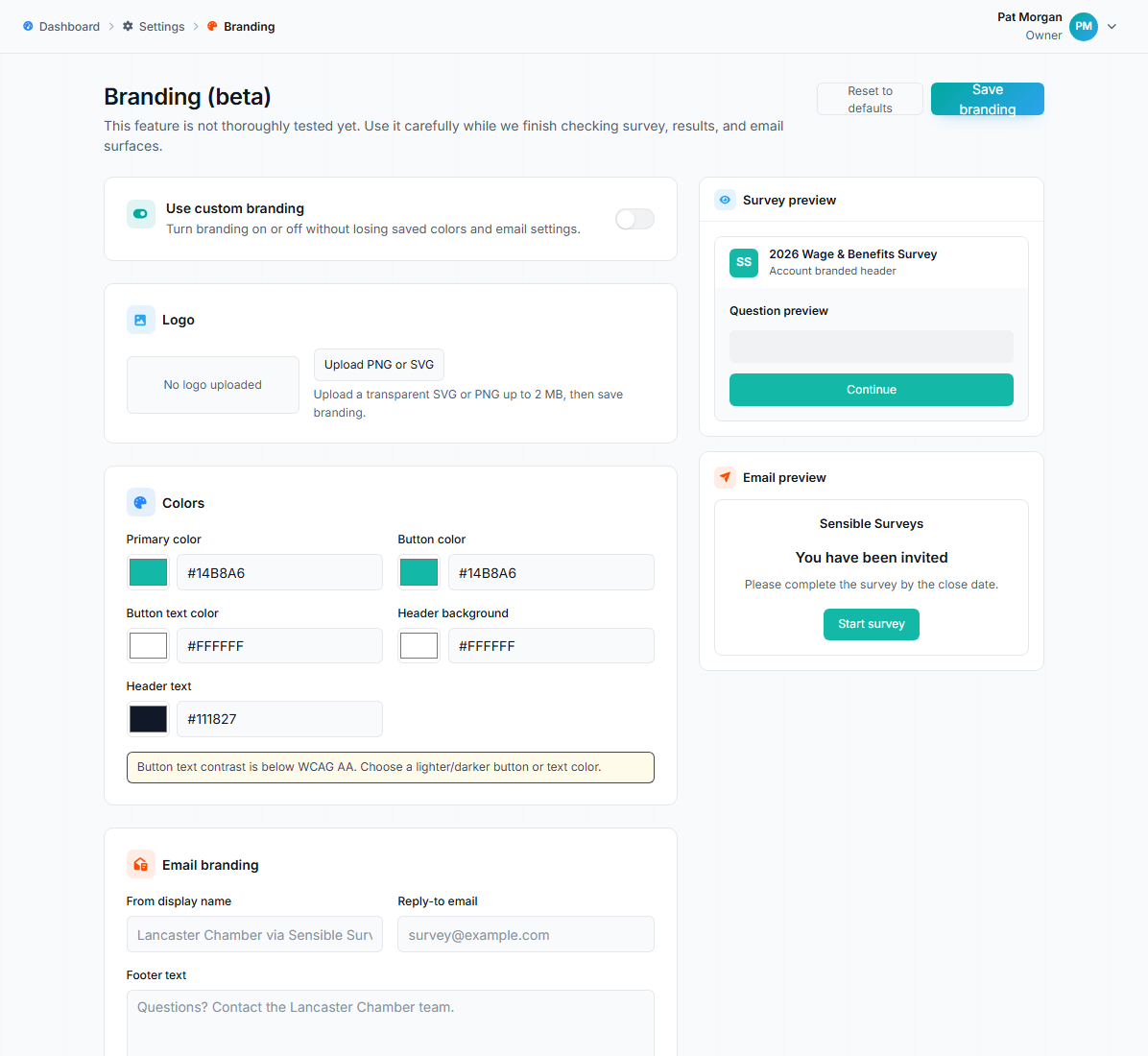
Branding page with custom branding toggle, logo upload, colors, email branding, and live previews.
Use custom branding
Section titled “Use custom branding”The master toggle turns branding on or off without losing your saved colors and settings, so it is safe to switch off temporarily.
Upload a PNG or SVG up to 2 MB; a transparent background works best. Test that it stays readable at small sizes. Remove logo takes you back to the standard mark.
Colors
Section titled “Colors”Five colors, each with a color picker and hex field:
- Primary color and Button color (default teal)
- Button text color
- Header background and Header text
Two guardrails are built in:
- Reserved warning colors. Strong reds, oranges, and yellows are reserved for warnings and errors, so takers never mistake a normal button for an alert. Choosing one shows “This color is reserved for warnings and errors. Choose a different brand color.” Muted warm tones are fine.
- Contrast warnings. If button text vs. button color, or header text vs. header background, falls below the WCAG AA ratio, the page warns you. The warning doesn’t block saving, but low-contrast buttons are genuinely hard to read; fix them.
Email branding
Section titled “Email branding”Emails to your takers can carry:
- From display name: e.g. “Lancaster Chamber via Sensible Surveys”. The actual sending address stays on the verified Sensible Surveys mail domain.
- Reply-to email: replies go to your inbox.
- Footer text: a short note, e.g. who to contact with questions.
Survey invite landing page
Section titled “Survey invite landing page”Customize the page takers land on from invitation and password-setup links: a headline, intro text, and footer note. Use it to say who you are and why the survey matters; it’s the first thing a member business reads.
Preview, save, reset
Section titled “Preview, save, reset”The right-hand Survey preview and Email preview panels update live as you edit. Click Save branding to apply. Reset to defaults removes the custom logo, colors, and email branding and restores Sensible Surveys defaults; surveys and responses are unaffected.
Troubleshooting
Section titled “Troubleshooting”The logo looks blurry
Section titled “The logo looks blurry”Upload a larger PNG, or use an SVG for a crisp result at every size.
My brand color is rejected
Section titled “My brand color is rejected”It falls in the reserved red/yellow warning range. Pick a different shade, or use your secondary brand color for buttons and keep the warm color for the logo.
Branding doesn’t show on some pages
Section titled “Branding doesn’t show on some pages”Expected: global sign-in and administrative pages intentionally keep standard styling. Branding covers taker-facing pages, standalone results pages, and account emails.